
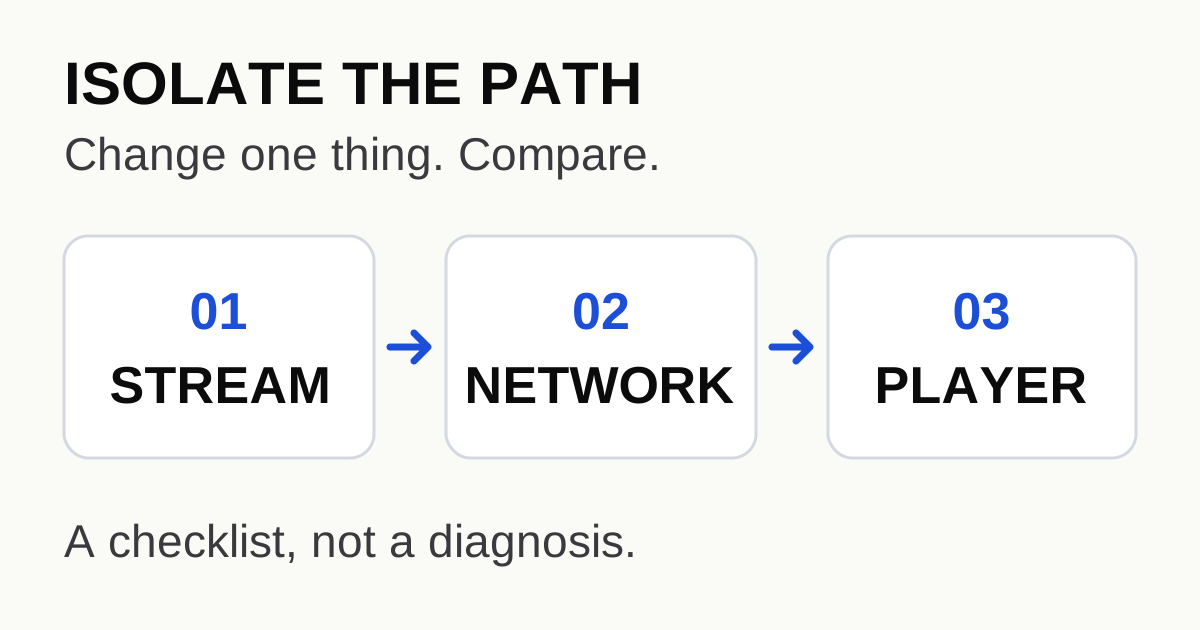
Start by isolating the failing path. Keep the same programme, device and player settings, then change one connection detail at a time. A fast internet speed test does not identify which part of an IPTV playback path is stalling. The useful result is a repeatable comparison—not a larger buffer setting chosen at random.
One box buffering does not prove that every stream is broken
In a Reddit discussion about periodic VOD buffering, a user described two similar TV boxes: live television worked on both, but on-demand playback stalled on the wired device. An edit reported a successful episode after switching that device to Wi-Fi. The user suspected the switch and planned another test.
That is a useful question, not a confirmed diagnosis. One successful episode cannot prove a faulty switch, and the post does not establish a universal advantage for Wi-Fi. Its practical lesson is narrower: when one device behaves differently, compare the path before replacing the service or copying somebody else's settings.
Write down what actually fails
Before changing anything, record the device model, operating system, player name and version, connection type, affected channel or VOD item, approximate failure interval and local time. Distinguish a playback stall from a failed sign-in, an empty programme guide or an application crash. Those are different symptoms.
Choose a fixed comparison window—for example, 15 minutes of the same item. This is a suggested test method, not a guarantee that every fault will appear within that time. For on-demand content, note the playback position as well: a repeatable failure at one position is different from an irregular interruption across unrelated items.
- Try one other live channel and one other on-demand item.
- Keep player options unchanged during the first comparison.
- Stop playback on other devices when the account's simultaneous-stream allowance is unknown.
- Record the result before restarting anything; otherwise the original symptom becomes harder to reproduce.
Change one variable per comparison
| Comparison | Keep constant | What the result can narrow down |
|---|---|---|
| Another channel or VOD item | Device, player and network path | Whether the symptom follows one item or several sources |
| Wi-Fi versus Ethernet on the same device | Item, player settings and nearby test time | Whether changing the local connection changes the symptom |
| A different cable or switch port | Device, item and wired route | A possible local-link problem, pending repeat tests |
| Direct router connection instead of an intermediate switch | Device and item | Whether the additional network segment matters |
| The same item on a second compatible device | Service and connection type where practical | A device/player-specific path; stop the first stream before starting the second |
You do not need to run every comparison. Begin with the smallest change that matches the symptom. If only one wired device fails, test its connection. If the same item fails across devices, collect that pattern before editing individual device settings.
Google's Google TV troubleshooting guide covers network checks, updates and restarts. Apply those steps where they match your actual platform; do not treat a Google TV menu path as instructions for every smart television. A reset is a later, disruptive step because it can erase device data.
Use network tests as clues, not verdicts
Amazon's Fire TV Network Status Tool documentation separates the device-to-router connection from the router-to-internet connection. Additional test details depend on the supported device. That separation is more useful than treating one headline speed number as a complete diagnosis.
A speed test checks a particular route and moment. It does not, by itself, verify an unrelated video source, an account session or the player's behaviour. This is why the comparison record matters. If changing only the local connection repeatedly changes playback, the local path becomes a stronger lead. If one source fails everywhere while others continue, source-specific support becomes a better next step. Neither pattern proves the ultimate cause on its own.
After collecting a baseline, update the player or device if appropriate, restart, and repeat the same comparison. Record each change separately. Avoid combining an update, a new connection and several player options into one test: even a successful result would not tell you what helped.
Send evidence that somebody else can reproduce
A short, specific report is more actionable than “my internet is fast but IPTV is bad.” Copy the template below and fill in only the relevant rows.
Device / operating system:
Player / version:
Live channel or VOD item (no account URL):
Local time and time zone:
Symptom / interval / playback position:
Baseline connection:
One variable changed:
Result before / after:
Does another item work?
Does a second device reproduce it?
Do not post a full playlist URL, username, password, token or account screenshot in a public thread. A playlist link may carry credentials. Send account details only through the service's established private support channel when they are needed.
Choose the next step from the result
If you are unsure which details belong in the player, read the M3U, Xtream Codes and EPG guide. If the issue begins before playback, use the device compatibility checklist. For this site's general workflow, see the setup guide; its availability does not establish the cause of your particular fault.
Sources and scope
Research checked on 15 October 2026. The exact date of the Reddit post was not independently confirmed. Reddit supplies an individual experience; the diagnostic sequence above is an editorial method, not a controlled experiment or a service-performance guarantee.
- Reddit: periodic VOD buffering on one device — original question and follow-up, not proof of a hardware fault.
- Google: fix problems with a Google TV device — platform-specific troubleshooting.
- Amazon: Fire TV Network Status Tool — supported-device network diagnostics.